





Salesforce Google Drive Integration: A Complete Guide
source on Google
Table of Contents
source on Google
Most enterprises run Salesforce and Google Drive as two separate tools, where one holds customer data and the other holds the documents that data relies on. This disconnect creates a daily problem for your team as they will need to switch between tabs to find a file, upload the same document twice, or often lose track of which version is current.
You can fix this disconnect with Salesforce and Google Drive integration. Salesforce offers multiple paths to integrate with Google Drive, such as a native Files Connect setup, AppExchange connectors, or a fully custom build using Apex and the Drive API. You can choose the right approach depending on your budget, your in-house development capacity, and your automation needs.
This guide covers various Salesforce and Google Drive integration approaches, including a setup walkthrough, a full cost comparison, and common challenges in integration.
What is Salesforce and Google Drive integration?
Salesforce and Google Drive integration connects your CRM records directly to files stored in Drive. Enterprises can attach Drive files to Salesforce records and view those files right inside Salesforce. You can also see updates reflected automatically, without switching or manually copying anything between the two platforms.
Why storage cost savings matter
Salesforce offers consumption-based storage to enterprises, meaning storage costs scale with usage. There are two types of storage costs charged by Salesforce: Data Storage (records and fields) and File Storage (attachments, documents).
When compared to Google Drive, Salesforce storage costs far more per GB than Drive does. Many enterprises already pay for Google Drive storage, then end up paying again to store the same files natively in Salesforce. In such cases, users create two separate storage bills, once as an attachment, once as a Drive file.
These storage costs stack up fast when data scales. This is why Google Drive Salesforce integration matters: it removes data duplication completely and updates the linked file in real time.
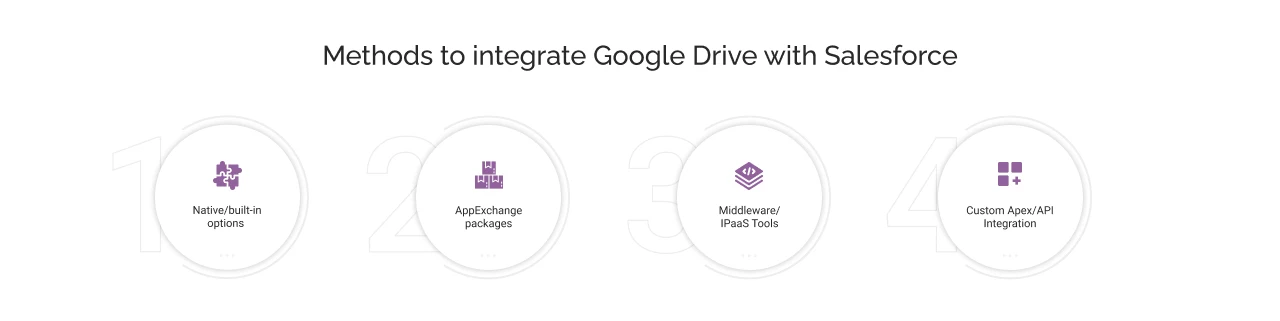
Next, we will provide you with a detailed overview of the different methods available for integrating Google Drive with Salesforce.
Methods to integrate Google Drive with Salesforce
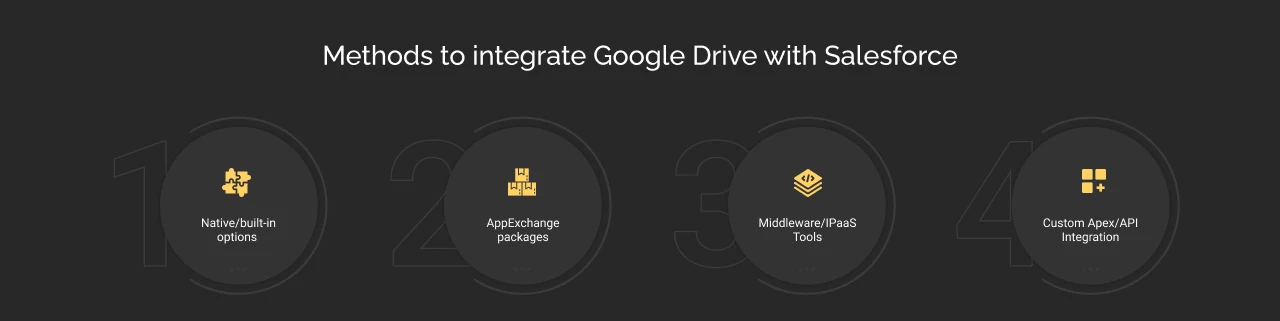
1. Native/built-in options
Salesforce provides built-in options for connecting to Google Drive using Google Workspace integration. With Salesforce Files Connect, you can attach Google Drive files to Salesforce CRM records, processes, etc. It provides a Data Connector that synchronizes data between Google Sheets and Salesforce in both directions. This connector is available in most Salesforce editions, except Salesforce Essentials.
Here’s a breakdown of pros and cons of Salesforce Google Drive Integration connectors:
Pros of Salesforce Files Connect
- There is no development cost since Files Connect and Data Connector are included in most Salesforce editions.
- Easy configuration using admin settings, no coding required.
- It links the files to Salesforce records without physically copying them.
- Linked files remain visible from the record and from Chatter, leading to improved collaboration.
Limitations of Salesforce Files Connect
- Files Connect doesn’t support Shared Drives. It only pulls files from a user’s personal Drive.
- You can view and attach files, but you cannot edit them from Salesforce.
- Files Connect also doesn’t let you control the sharing permissions of Drive files from Salesforce. You can add this capability through custom development on top of the Chatter REST API.
Who should use this?
Choose Files Connect if you just need Drive files attached and visible inside Salesforce records without any additional automation or budget.
Files Connect is already included in most Salesforce editions at no extra cost or setup delay. That makes it the right starting point for teams still validating whether this integration is even worth investing further in.
2. AppExchange packages
AppExchange (now called AgentExchange) offers pre-built connectors, Drive Connect, XfilesPro, and CloudFiles.
Among AppExchange’s Google Drive connectors, Drive Connect stands out for combining folder automation with document generation in one package. Enterprises can use Drive Connect to link Google Drive files and folders to Salesforce records without requiring custom development on top. In addition to this, you can also create folders using Salesforce Flow and generate documents like Google Docs, Sheets, Slides, Microsoft Word files, and PDFs, directly from Salesforce data.
Here’s a breakdown of the pros and cons of AppExchange Drive Connect :
Pros of Salesforce Drive Connect
- It links both files and folders to Salesforce records, unlike native connectors that only allow file linking.
- You can create folders using Salesforce Flow. It means whenever a new case or opportunity is created, it triggers folder creation in Google Drive, without you manually doing it.
- You can start a 14-day trial period to know whether Drive Connect is compatible with your existing workflows.
Cons of Salesforce Drive Connect
- You need to pay a recurring cost to use Drive Connect on top of what you are already paying for Salesforce and Google Drive.
- There can be added complexity in the folder automation setup, as it depends on Flow, which requires developer expertise to build and manage.
- There’s vendor dependence, as Drive Connect is a third-party package rather than a native Salesforce tool.
Who should use this?
Scaling businesses eventually move beyond simple file attachment. If you need folders and documents to build themselves as deals and cases move forward in Salesforce, choose Drive Connect. It helps you achieve folder automation and document generation without needing to hire a development team.
3. Middleware/iPaaS tools
Salesforce provides middleware tools like MuleSoft, which is an integration tool that provides API-led connectivity, allowing enterprises to connect Salesforce with any third-party platform or system through reusable APIs. You can use MuleSoft for broader automations like syncing a customer record, an ERP system, and Drive simultaneously without manual steps.
Other iPaaS tools like Zapier and Workato serve a similar purpose at a smaller scale. They build a single connection for one specific job using pre-built triggers and a no-code interface to connect Salesforce and Drive without custom flows.
Here’s a breakdown of pros and cons of MuleSoft connector:
Pros of Salesforce MuleSoft
- Provides workflow automation and event-based synchronization between connected systems.
- You can build reusable connections, so you don’t need a new Google Drive Salesforce integration from scratch if you want to connect more systems.
- MuleSoft can handle complex, high-volume orchestration that tools like Zapier can’t manage.
Cons of Salesforce MuleSoft
- Costs more and requires technical setup effort.
- Less suitable if you don’t want automations across multiple systems.
Who should use this?
Enterprises use MuleSoft for its API-led architecture that allows them to connect Salesforce to an ERP, DocuSign, Slack, and Drive all at once. Choose MuleSoft if you want each connection to be reusable as you add more systems later.
4. Custom Apex/API integration
Salesforce’s built-in tools or packaged connectors cannot handle business-specific automations out of the box. Hence, enterprises opt for custom development using Apex and the Google Drive API to build logic that reflects exactly how their business runs.
For instance, when a new deal is closed, custom Apex code can automatically create a Drive folder named by client and deal ID. It will also be structured and permissioned as the process requires without any human intervention.
Pros of Custom Development
- Full control over logic from triggers, folder creation, and permission mapping built around your processes.
- No dependence on third-party vendor pricing changes; your development cost is based on your own requirements.
- You can integrate this directly with other custom logic already built into your Salesforce org.
Cons of Custom Development
- Recurring maintenance costs every time Google updates its API or Salesforce changes governor limits.
- A poorly designed API can consume your API request limits fast.
- No vendor support if teams choose custom development. If anything breaks, your team or development partner will need to fix it.
Who should use this?
Large enterprises use both MuleSoft and custom development rather than choosing one over the other. MuleSoft helps them move data between systems, while Apex code handles the business logic specific to your Salesforce org.
However, out of various integration approaches, Files Connect is where most teams start. It’s already included in your Salesforce edition, so there’s no cost decision to make before testing whether to use this integration approach.
Let’s move ahead to see exactly how to set it up.
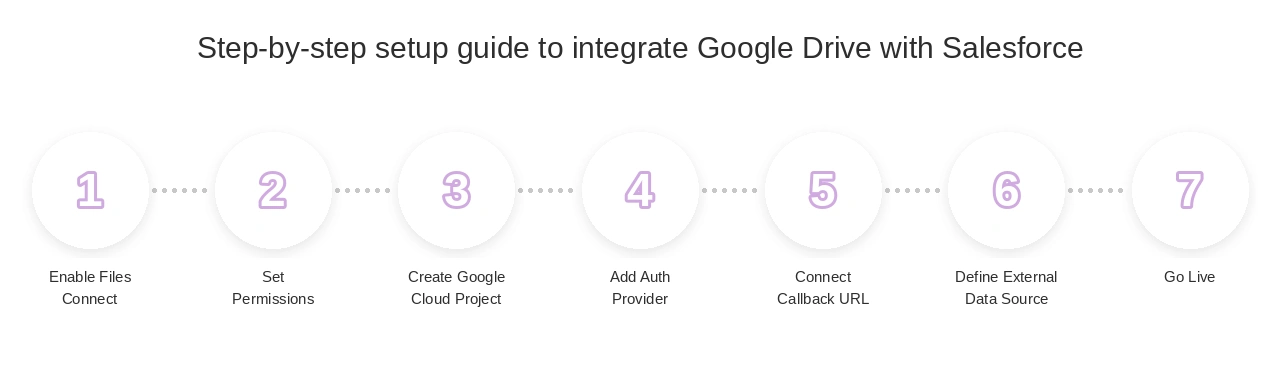
Step-by-step setup guide to integrate Google Drive with Salesforce
Files Connect is a native option for Google Drive integration with Salesforce, and it is where most teams start, before deciding if they need more. It requires simple configuration steps and an admin with access to both your Salesforce org and Google Cloud Console. Here’s a complete breakdown on how to set up the integration:
Part 1: Enable Files Connect in Salesforce
- Go to Setup and search for “Files Connect” in Quick Find. Then select Files Connect.
- Click Edit, then check Enable Files Connect.
- After this, pick a File Sharing mode from Copy or Reference (choose Copy if you share files with external partners or customers, or choose Reference if you want Salesforce to reflect the external system’s access rules)
- Click Save.
Part 2: Set user and admin permissions
- Go to Setup, search for “Permission Sets” or “Profiles”.
- Create a new profile or open an existing one.
- Enable Files Connect Cloud under ‘System Permissions’ and save.
- Assign this permission set to select users (including admins) who will need access to configure the data sources.
Part 3: Create a Google Cloud project and OAuth credentials
- Use your Google Workspace admin account to log in to console.cloud.google.com
- Create a new project and give it a name.
- Open APIs & Services > Library, search for Google Drive API, and click Enable.
- Go to Credentials, fill in the OAuth Consent Screen with a valid email and application name, and save.
- Under Credentials, click Add credentials > OAuth client ID. Keep your OAuth credentials copied for the next part (client ID and client secret).
- Then select web application and click Create.
Part 4: Create an Authentication Provider in Salesforce
- Search “Auth. Providers” in Salesforce Setup and click New.
- Set Provider Type to OpenID Connect, then fill in these details:
- Name: display name in Salesforce
- OAuth credentials: client ID and client secret from the previous step
- Authorize Endpoint URL: https://accounts.google.com/o/oauth2/auth?access_type=offline&approval_prompt=force
- Token Endpoint URL: https://accounts.google.com/o/oauth2/token
- Default Scopes: openid email profile https://www.googleapis.com/auth/drive
- Click Save and copy the Callback URL shown at the bottom of the page for the next step.
Part 5: Connect the callback URL back to Google
- Open your web app’s credentials in Google Cloud Console.
- Paste the Callback URL into Authorized Redirect URIs and save.
Part 6: Define the External Data Source
- In Salesforce Setup, search “External Data Sources” and click New.
- Then set ‘Type’ to ‘Files Connect: Google Drive’
- Set ‘Identity Type’ to ‘Per User’ or ‘Named Principal’ (choose Per User for separate user login or Named Principal for one shared login)
- Select Authentication Protocol as OAuth 2.0
- Choose the Authentication Provider that you just created.
- Check ‘Start Authentication Flow on Save’ and test the connection.
- Click Save.
Part 7: Start using it
- Users can log in and click Allow the first time they open Drive from Salesforce.
- After that, Drive files and folders show up directly in Files Home, Chatter posts, and global search if they’re already enabled.
Common challenges in Salesforce-Google Drive integration and how to solve them
Challenge 1: Sharing permissions are not synchronized in Salesforce and Google Drive
How to solve this?
The permissions set in Google Drive don’t automatically apply to the files once they are visible in Salesforce. This challenge is not specific to any one specific integration method but rather a structural flaw.
You can solve this by building permission checks inside the integration method you choose. Native tools follow Drive’s sharing settings in reference mode, but for more synchronized permission changes, you will need to choose packaged solutions and custom builds for integration.
Challenge 2: No automation without added configuration
How to solve this?
Although Files Connect is a native tool for integration, it only supports linking of Drive files on Salesforce. Simply connecting the tools doesn’t automatically enable automations like folder building, file transfers, etc.
Hence, automation has to be configured using Flow, custom Apex triggers, or a middleware workflow. It doesn’t happen by default with any method.
Challenge 3: API limits can cut off your integration
How to solve this?
It is often witnessed that enterprises consume their Salesforce’s or Google’s API request limits fast when handling frequent file syncing, high file volumes, and weak integration logic. This risk applies no matter which integration approach you use: AppExchange packages, middleware, or a custom build.
To overcome this, you must monitor API usage regularly. You should process records by grouping them into batches rather than running one call per request, especially when you are handling a high transaction volume.
How Much Does Each Salesforce-Google Drive Integration Method Cost?
Here’s a complete breakdown of what each integration approach costs and how to choose the right one for your business:
| Method | Pricing model | Choosing the right integration approach |
|---|---|---|
| AppExchange (Drive Connect) | $6/user/month(billed annually) | AppExchange’s Drive Connect follows the most straightforward pricing model. It provides you with more than basic file linking without requiring a custom build. You can choose Drive Connect for integration if you’re looking for folder automation or document generation without hiring a developer. |
| Zapier (light middleware) | Professional package starting from $19.99/month(billed annually) | You can choose Zapier for Salesforce to Google Drive integration, especially if you want to connect to additional tools like Slack or Gmail. The total cost of integration will be based on task usage, and you can choose a suitable package from Professional, Team, or Enterprise, based on your requirements. It is one of the most cost-effective integration approaches for small teams running simple workflows. |
| MuleSoft (enterprise middleware) | Consumption-based Choose between MuleSoft Integration Starter, Advanced, and API Management Solution) | Salesforce doesn’t publish a flat number for MuleSoft integration; it depends on the number of flows and messages consumed by users. Hence, the pricing is quote-based, and you’re directed to contact sales for your specific figure. Businesses choose MuleSoft when they are automating across many systems, not just Drive and Salesforce (see other integrations). |
| Workato (enterprise middleware) | Fully custom quote based on requirements | Mid- to large-scale enterprises without a dedicated developer team often choose Workato over MuleSoft. Here, the deployments are typically measured in weeks, while MuleSoft implementations commonly run longer due to their API-led architecture and developer dependency. If you need to go live fast, you can choose Salesforce-Drive integration via Workato. |
| Custom Apex build | One-time development cost + ongoing maintenance | Enterprises go for custom integration logic development when their workflow requirements are specific enough that no packaged tool, including middleware, offers a ready-made solution for it. By choosing a custom build, an in-house Salesforce developer, or an implementation partner will build custom logic, which includes the cost of one-time development, ongoing maintenance, and support. The final cost may vary as Google’s API or Salesforce’s governor limits change. |


Bottom line
The method you choose should fit your team’s size and technical capacity today. If you’re working with a small team without in-house developers or a dedicated Salesforce partner, you can go with solutions like Drive Connect and Files Connect, both of which will solve your Salesforce-Google Drive integration problem for a fraction of the cost and integration complexity.
However, if you are a mid-sized business operating with multiple tools and looking beyond simple file linking, you can choose Workato or Zapier to achieve automation across Salesforce, Drive, and additional connected systems. If you’re a large enterprise with a dedicated Salesforce implementation partner or in-house developers, custom Apex or MuleSoft will give you more control over your workflows.
So if you’re looking for Salesforce Integration Services and evaluating a custom build or middleware setup, talk to our team. We’ll help you design and implement integration logic that aligns with your business, not just your current file-sharing needs.
Don’t Worry, We Got You Covered!
Get The Expert curated eGuide straight to your inbox and get going with the Salesforce Excellence.
Co-founder and CTO at Cyntexa also known as “VJ”. With 10+ years of experience and 22+ Salesforce certifications, he’s a seasoned expert in Salesforce Data Cloud & AI Products, Product Engineering, AWS, Google Cloud Platform, ServiceNow, and Managed Services. Known for blending strategic thinking with hands-on expertise, VJ is passionate about building scalable solutions that drive innovation, operational efficiency, and enterprise-wide transformation.


Cyntexa.
Join Our Newsletter. Get Your Daily Dose Of Search Know-How